LS Pay For BC
In this article
Payment for Sales Order and Sales Invoice using LS Pay
Refunds on Sales Return Orders and Sales Credit Memos
Recovering failed transactions
LS Pay For BC is a Business Central add-on to allow processing payments for Business Central documents through external card readers.
Before you start
Make sure you have followed the setup guide for the LS Pay Service and LS Pay For BC.
Payment for Sales Order and Sales Invoice using LS Pay
Making payments for Sales Orders and Sales Invoices involves the same process described below.
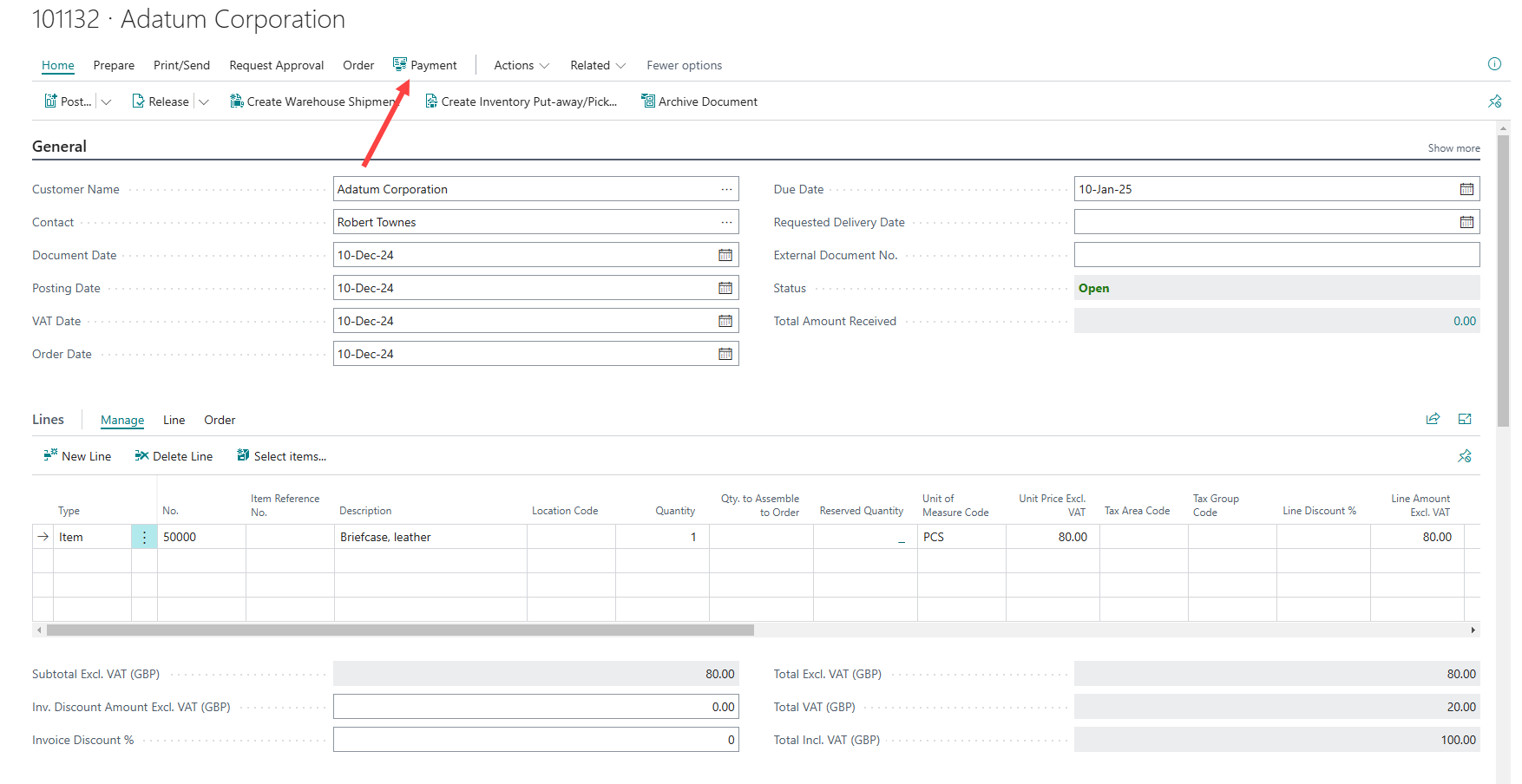
- Before processing a payment using LS Pay, set up a Sales Order or Sales Invoice with a customer and item lines.
- To trigger a payment using LS Pay, press the Payment button at the top.
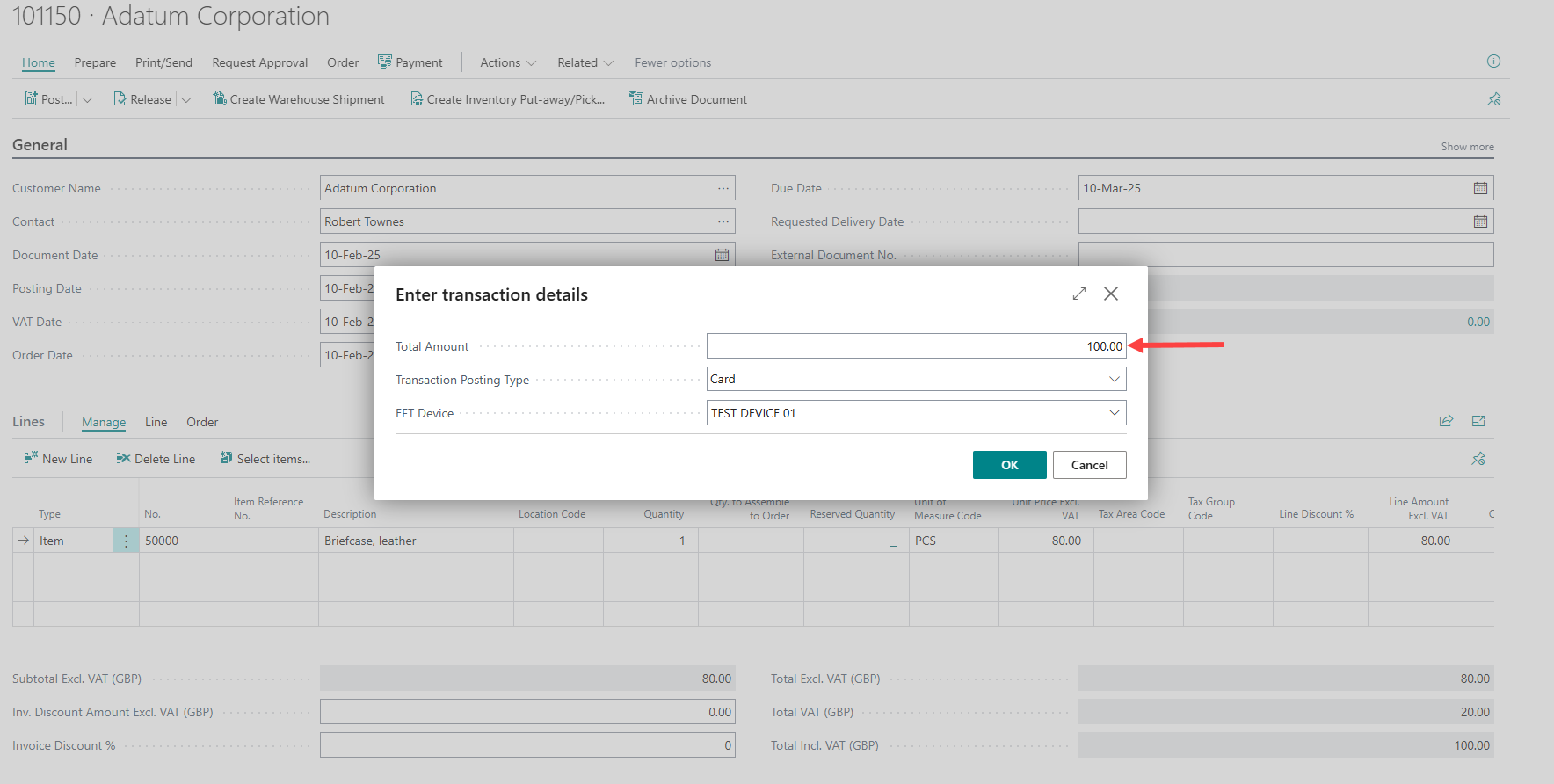
- Next, confirm the payment amount. The transaction details dialog automatically shows the amount remaining to be paid. The amount can be edited if partial payment is requested. The document continues to keep track of amount remaining to be paid if partial payments are performed.
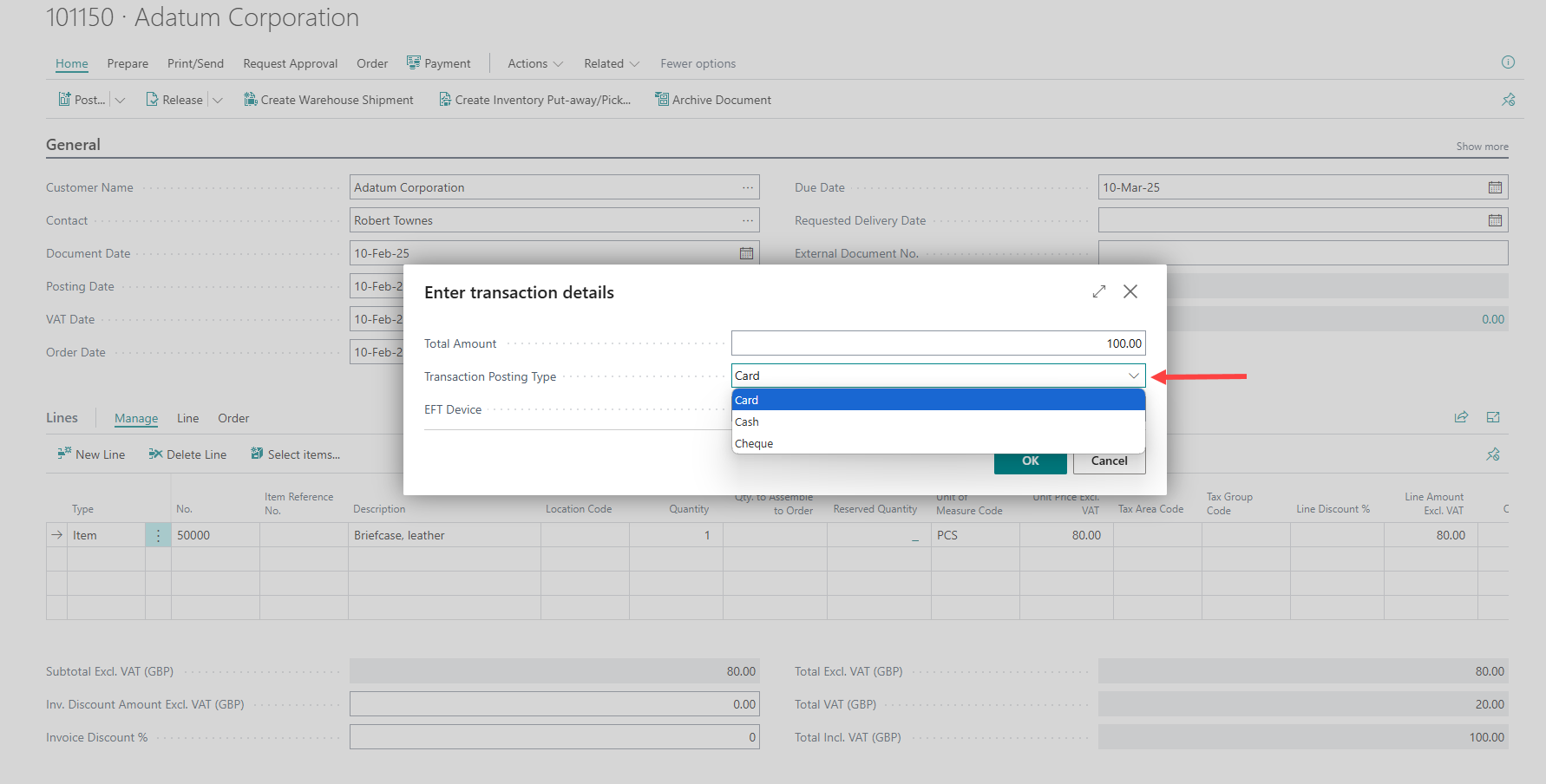
- The available payment methods are: Card, Cash and Cheque. Selecting Cash or Cheque is for non-card payments using cash or cheque, selecting this option always returns an approved response and no transaction is processed through the payment terminal. Selecting Card triggers a payment on the payment terminal.
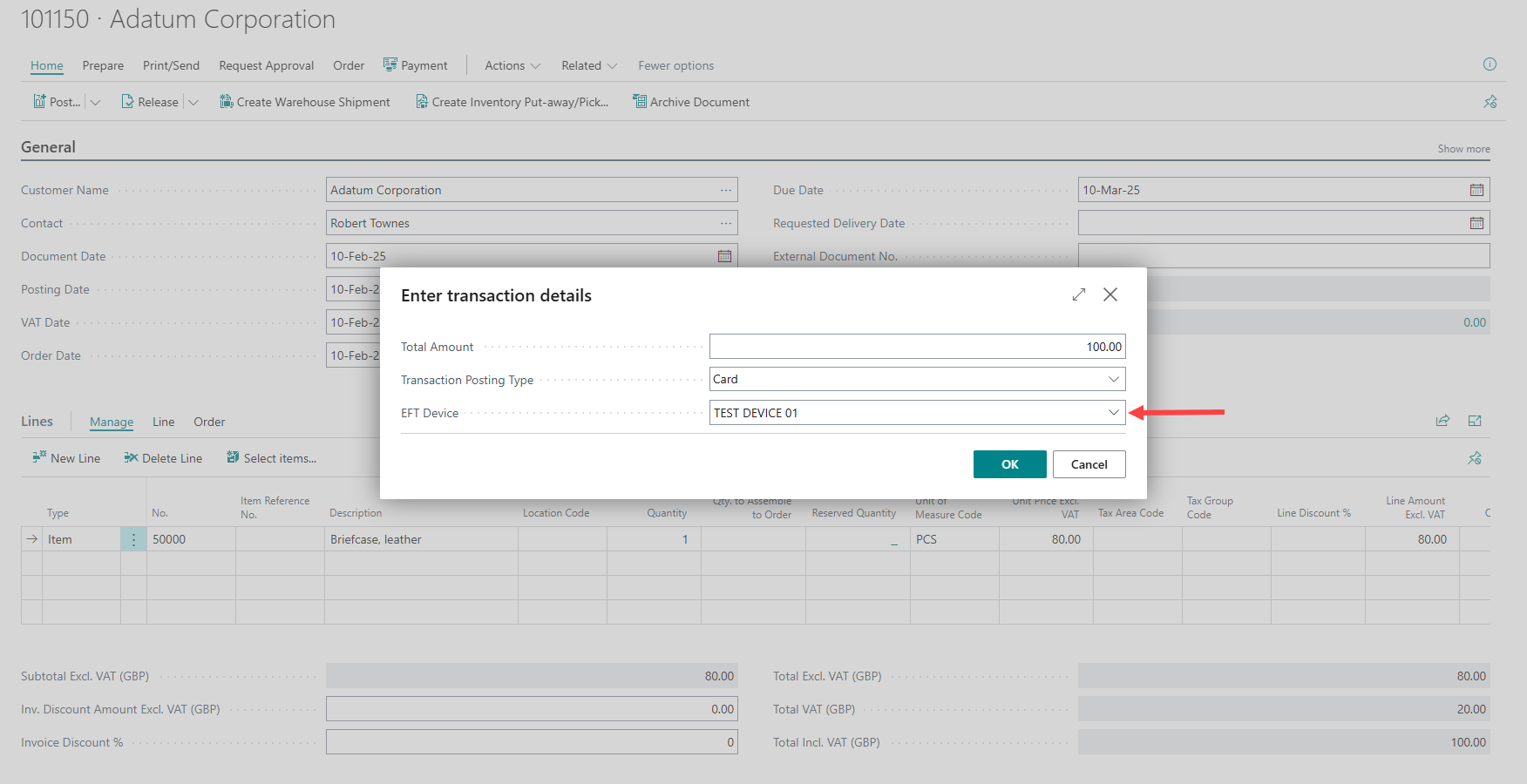
- For Card payments, select an EFT Device. The default device for the user is selected by default.
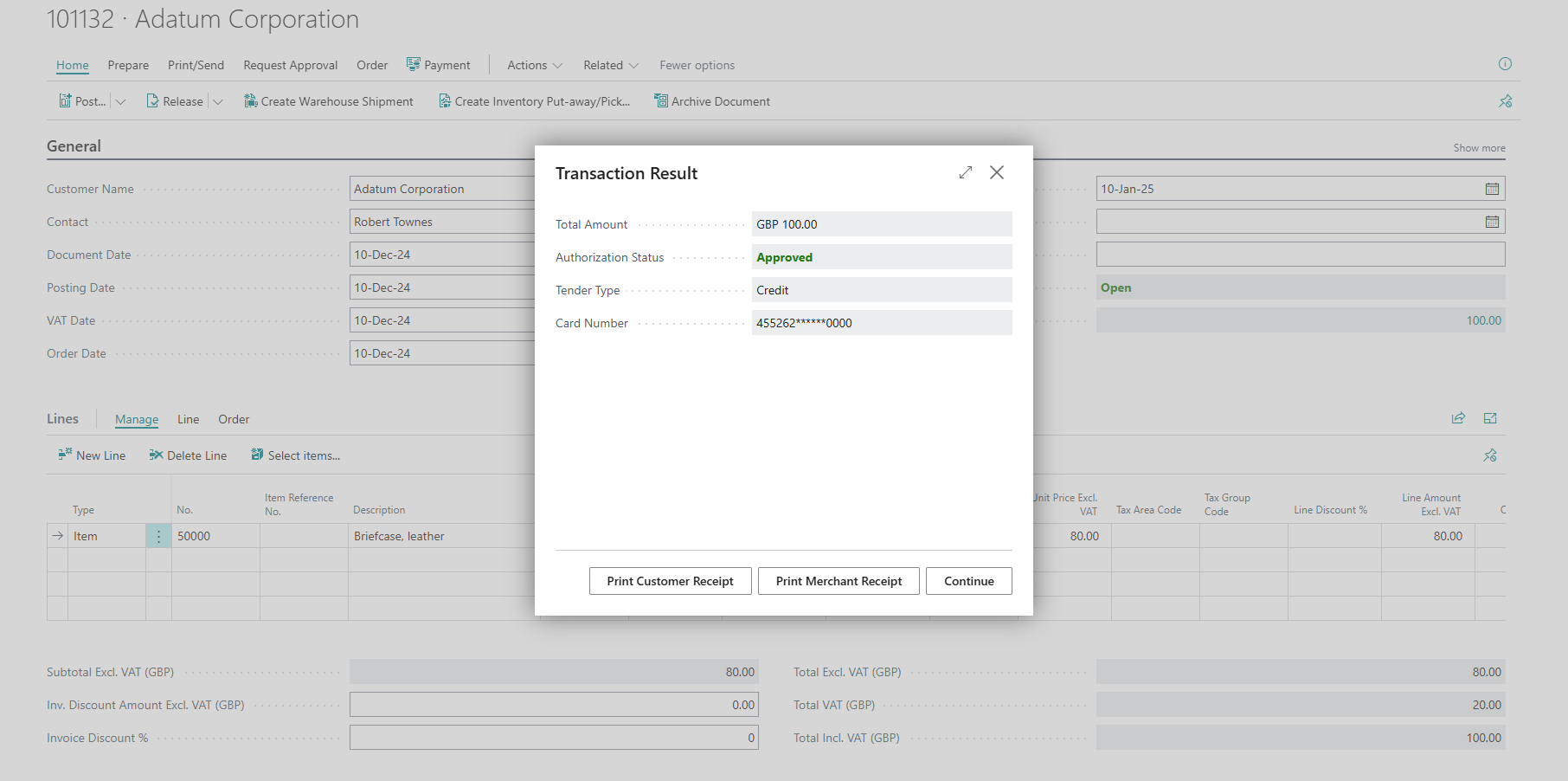
- After the payment is completed, a Transaction Result dialog shows the result of the transaction with the option to generate printable customer and merchant receipts using pdf reports.
- After closing the Transaction Result dialog, the results of transactions related to the open document is still available to view by clicking on the Total Amount Received amount.
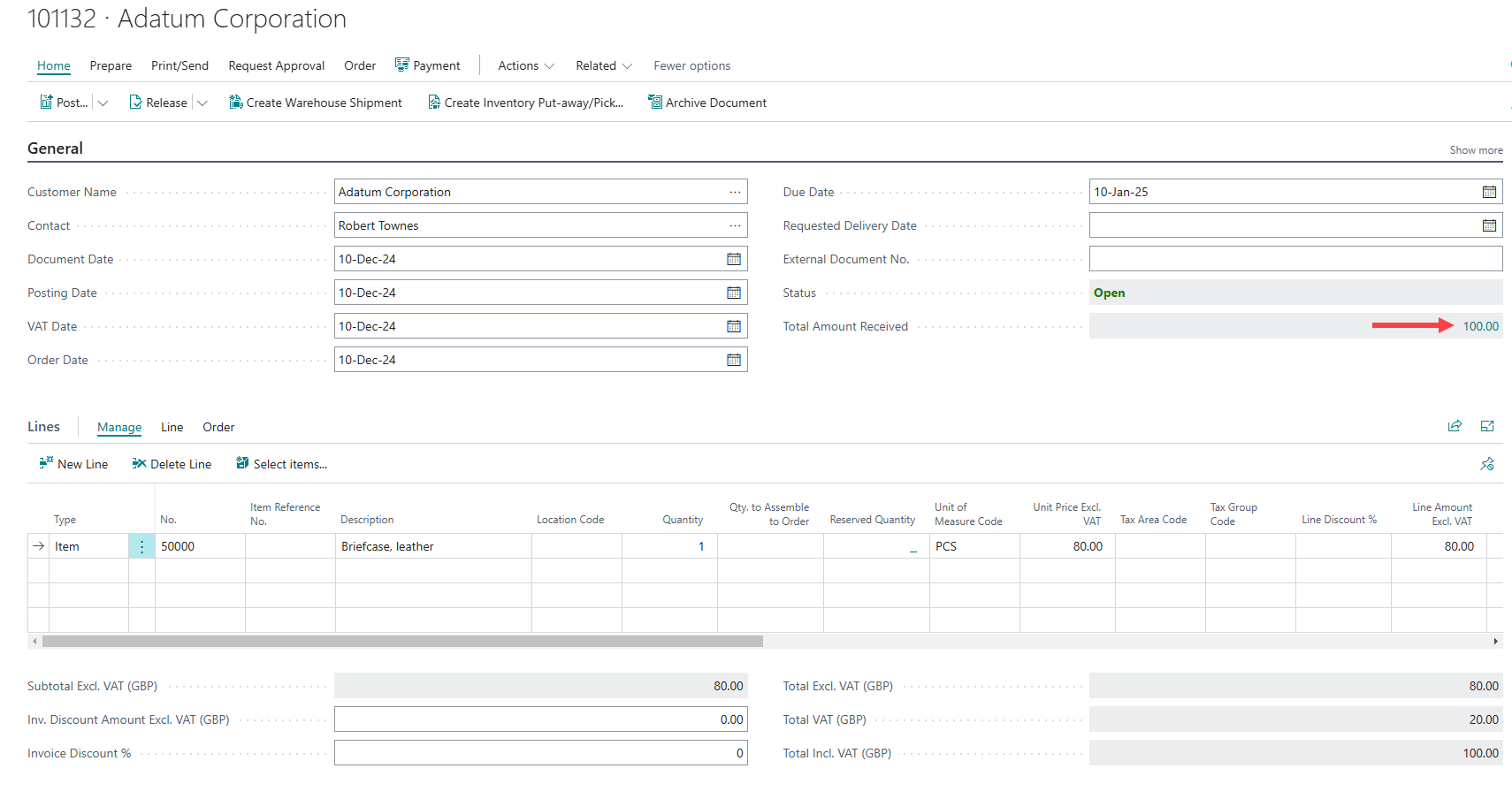
This opens a list of all transactions performed on the current document.

After a payment is completed as approved, it gets automatically posted to the Customer Ledger.
Note: If a payment fails with an error, a recovery might be required. See the Recovering failed transactions section below.
Refunds on Sales Return Orders and Sales Credit Memos
Processing a refund on a Sales Return Order or a Sales Credit Memo follows a similar process to the payment process described in the payment section above.
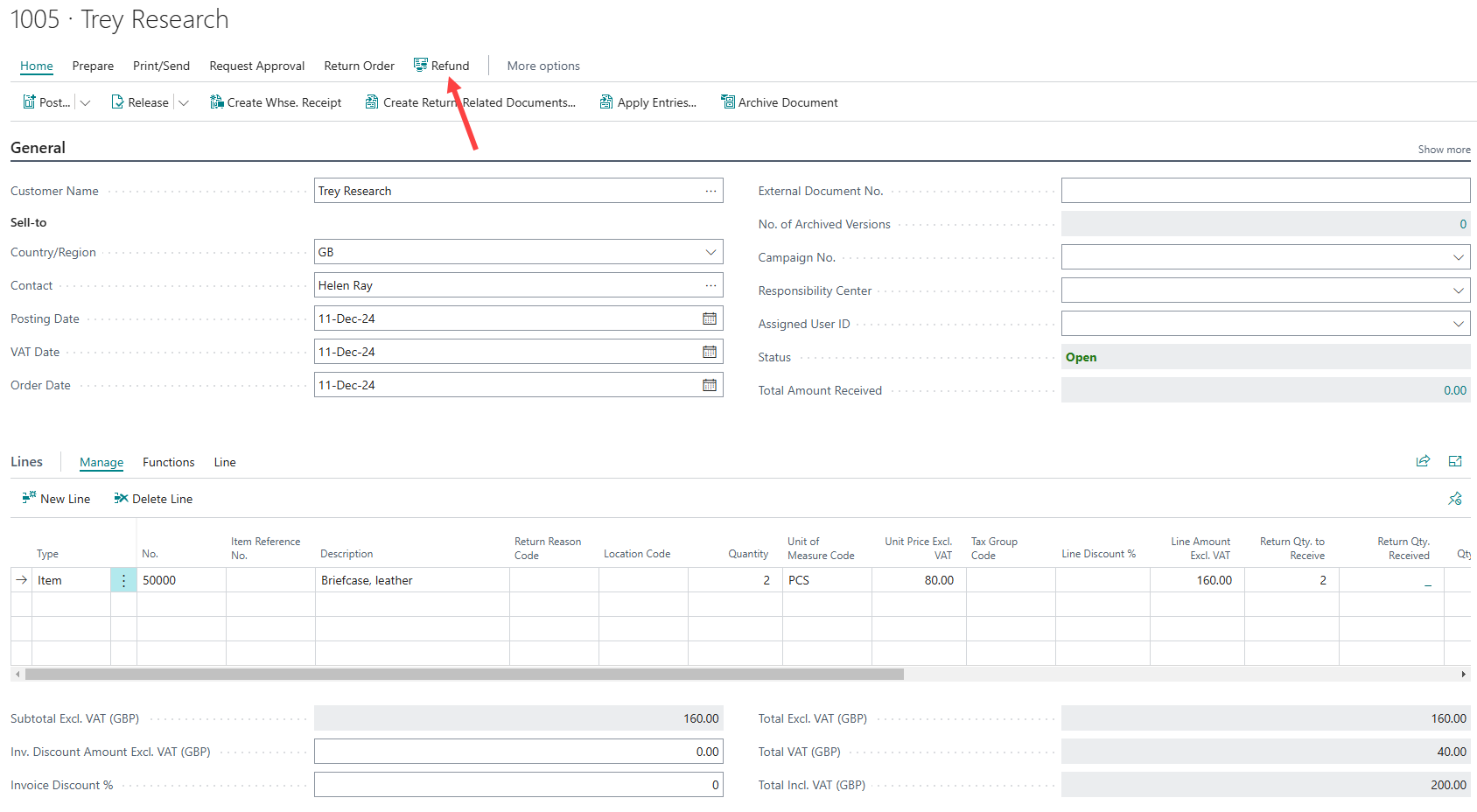
After filling in a Sales Return Order or Credit Memo with a customer and item lines, click the Refund button to initiate a refund and then follow the same instructions as for payment.
Voiding a transaction
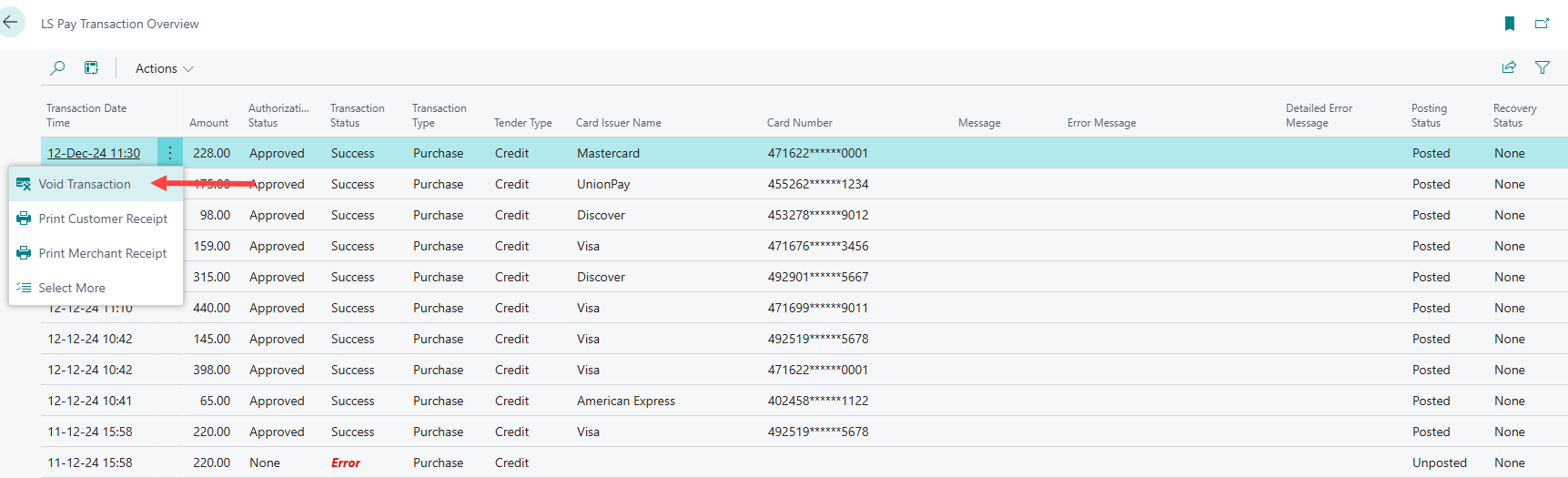
To void a transaction, open the Transaction Overview either on the document where the transaction was processed or by opening the search window and typing in Transaction Overview. You get a list of all performed transactions with the most recent at the top.
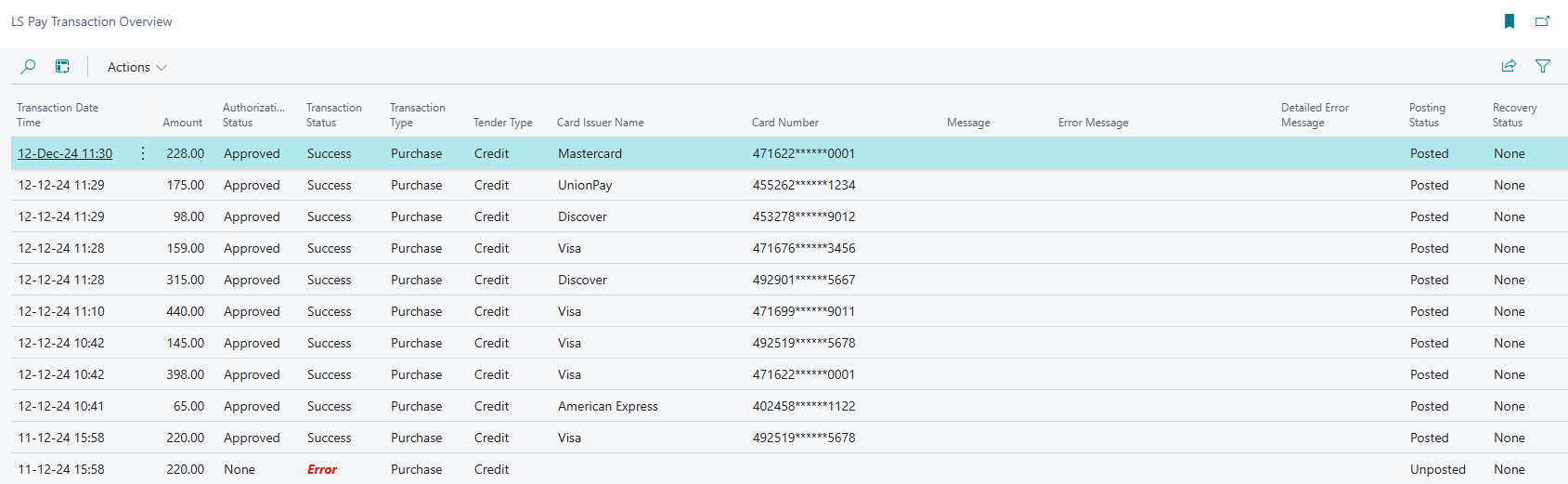
- Click the three dots on the transaction line that needs to be voided and select Void Transaction.
-
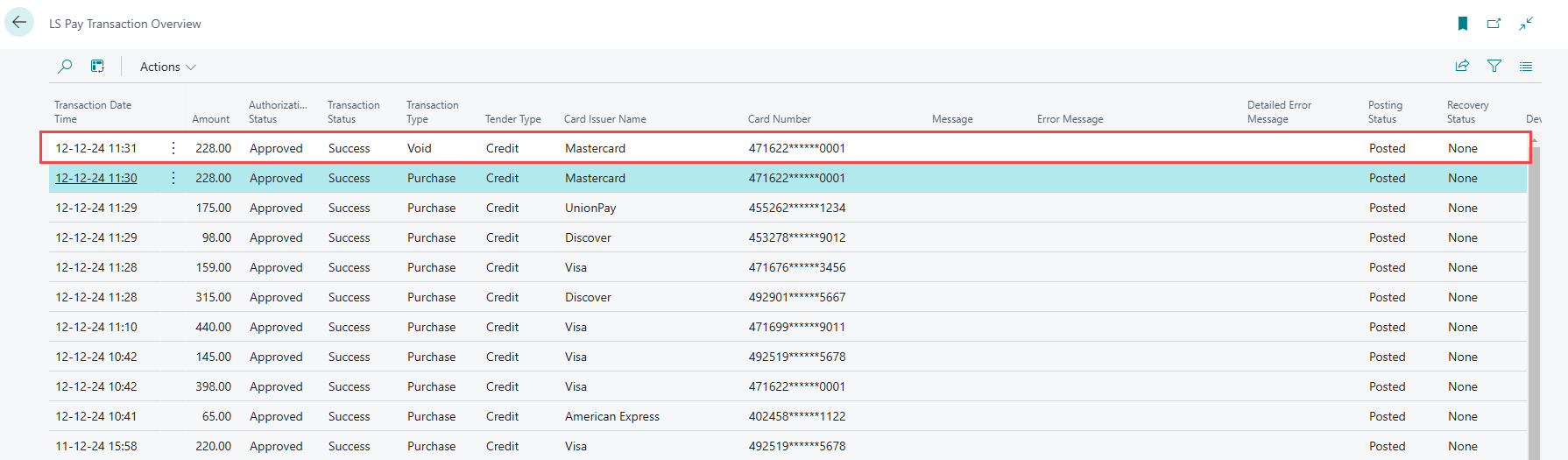
If the void was successfully processed on the terminal, a new transaction line should appear showing the result of the void.
Transaction History
To see the history of all transactions, search for Transaction Overview in the search window. The list shows all transactions processed with details such as transaction type, amount and payment method as well as any errors that may have occurred during transactions. Each line also has the option to void the selected transaction if a transaction needs to be reversed, as well as the option to generate both customer and merchant receipts in pdf form to allow downloading and printing.
Recovering failed transactions
If a payment was completed on the terminal but an error happened in the LS Pay for BC app, it is important to make sure to recover the transaction so the result gets registered to the database.
Note: Currently only recovering the last processed transaction is available.
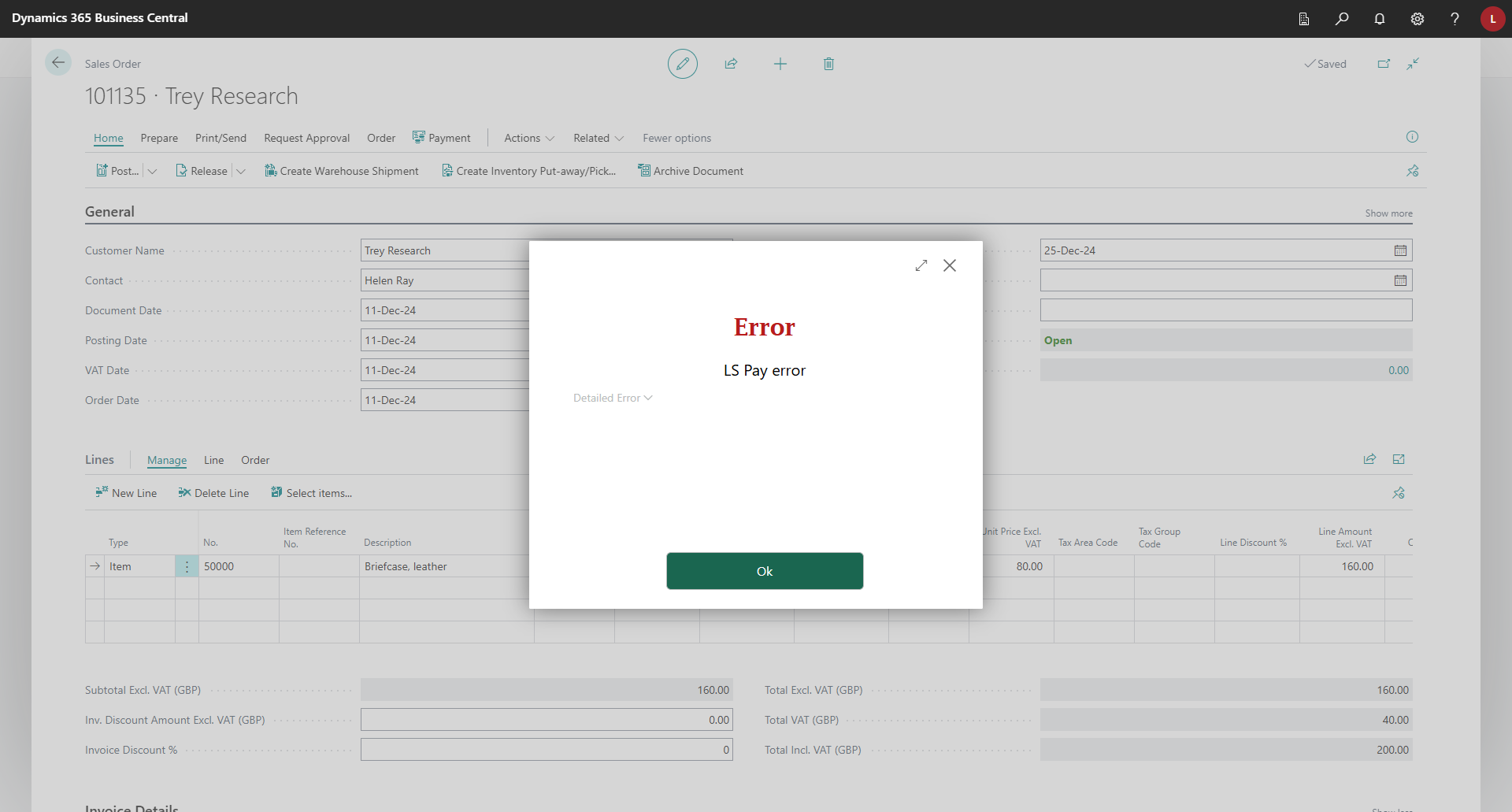
Here are the steps to recover a transaction:
- Open the transaction overview by clicking the Total Amount Received amount.
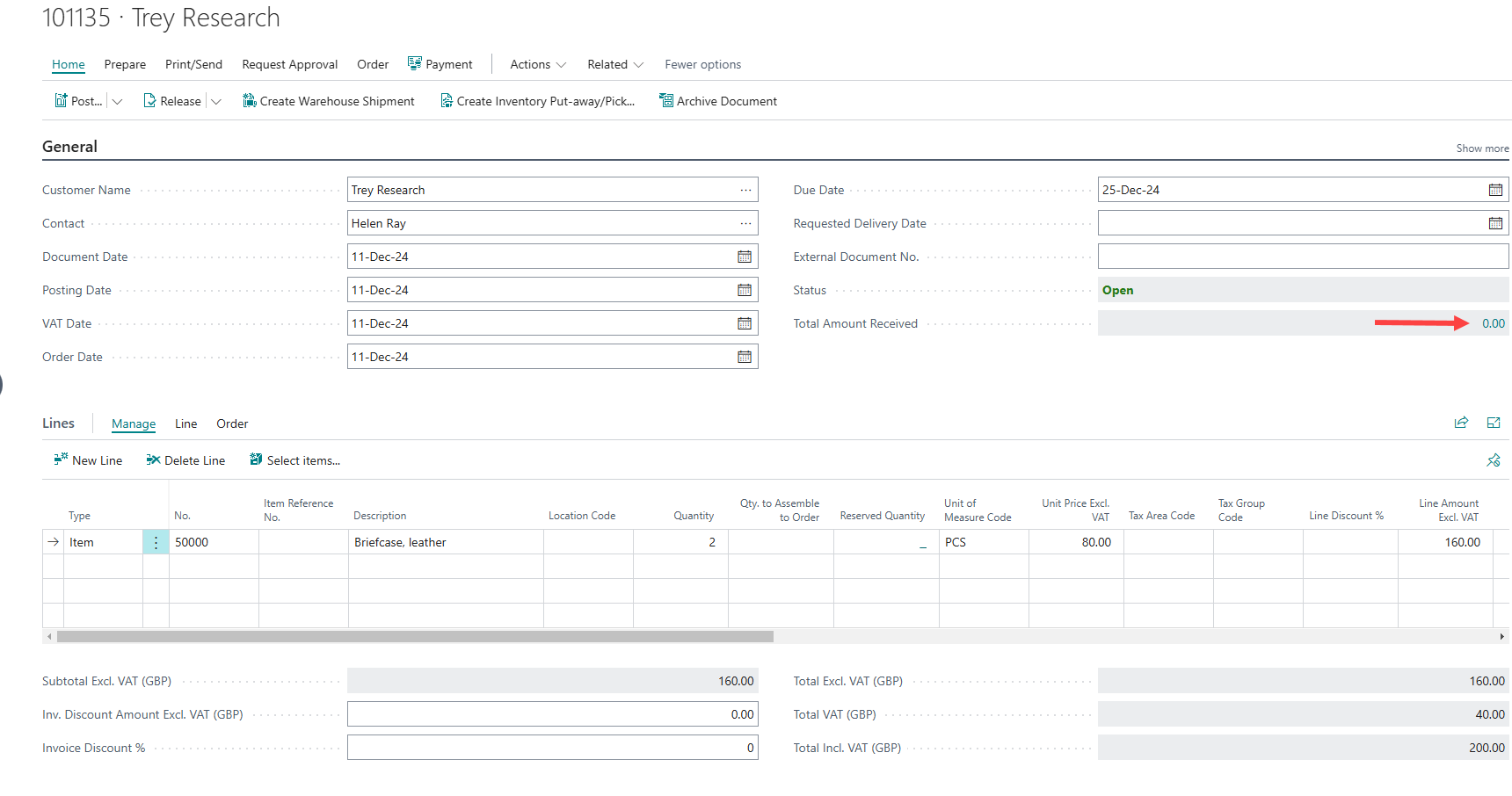
- Click Actions at the top.

- Select Recover Last Transaction.

- If the recovery was successful, a new transaction line shows up in the transaction overview and the Recovery Status column for the failed transaction should show Recovered.

Limitations
Currencies
- Multiple currencies are not supported: LS Pay for BC currently assumes that the currency of the payment terminal matches the currency of the Business Central instance.
- Currency handling for customer ledger lines: LS Pay generates customer ledger entries using the currency specified in the sales document. However, the currency used for communication with the terminal is determined by the currency set in the EFT Device Card.
- If the EFT Device Card currency differs from the sales document currency, the transaction will be sent to the terminal using the EFT Device's currency. However, the customer ledger entry will still reflect the currency from the sales document.
Transaction ID formats
- GUID is currently the only available Transaction ID format.
Referenced refund
- Referenced refund is currently not supported
- Copying sales order/invoice to sales return order/credit memo does not copy the EFT Card Entries from the original sales header.
Known issues
- No result shown after transaction recovery.
- Voiding a Cash or Cheque transaction is not working.
- Verifone Global:
- Receipts requiring signature not being printed before signature verification is prompted in app.
- Recovering a Void transaction not working.
- Printing previously printed receipts are not marked as COPY.
- LS Pay Service occasionally requires a restart after an install.
- Installer not validating the presence of .NET dependencies required for the LS Pay Service to function properly.